
 Sign in to MyAccount
ONT Diagnostic Checks
MS3 Networks ONT
Identifying your ONT
The ONT (Optical Network Terminal), look for a small white box, mounted to a wall within your property (usually on the ground floor).
White MS3 ONT
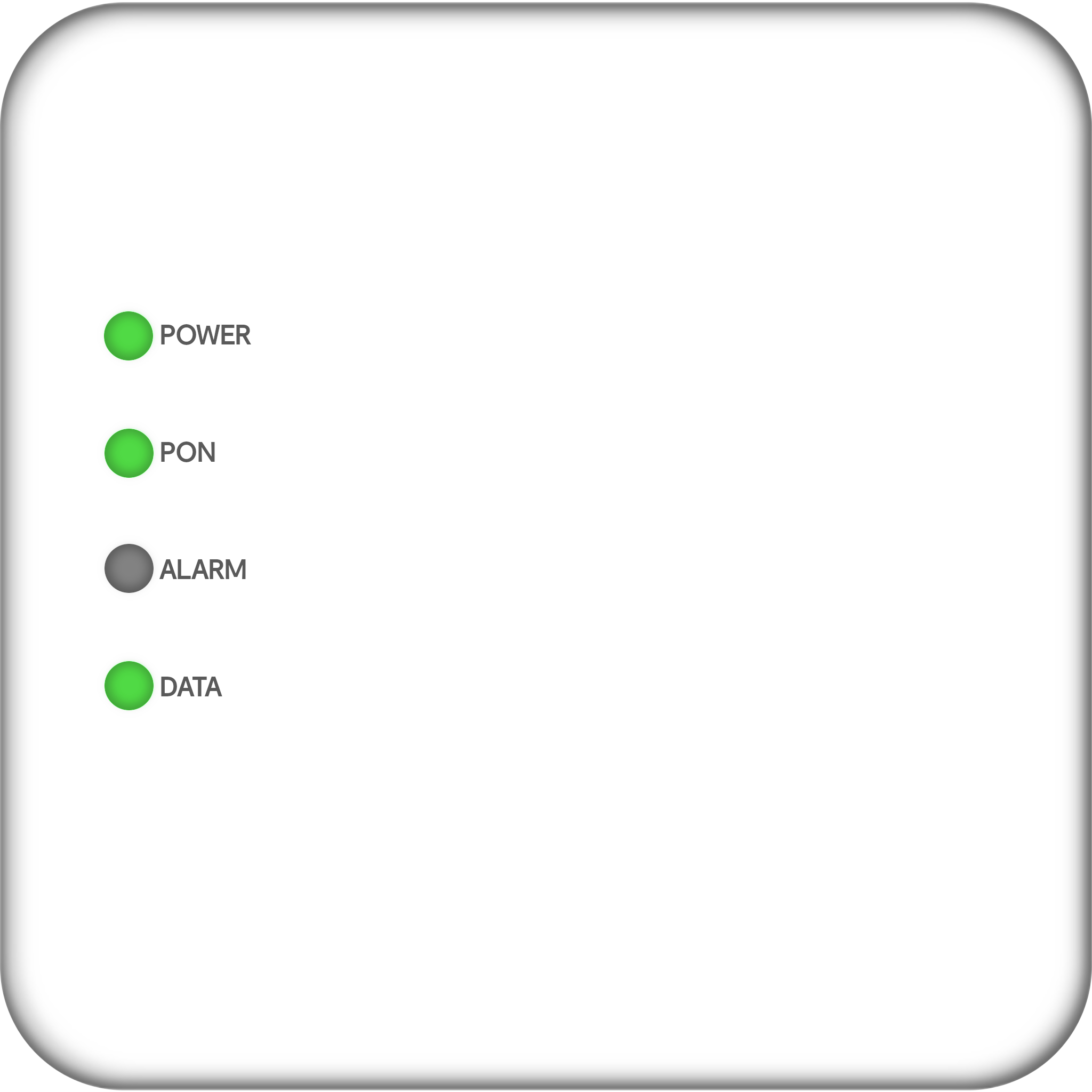
A white MS3 ONT that’s working correctly will show solid green Power and PON lights. The Data light will be flashing green when traffic is passing. The Alarm light should be off.
Is your ONT power light off?
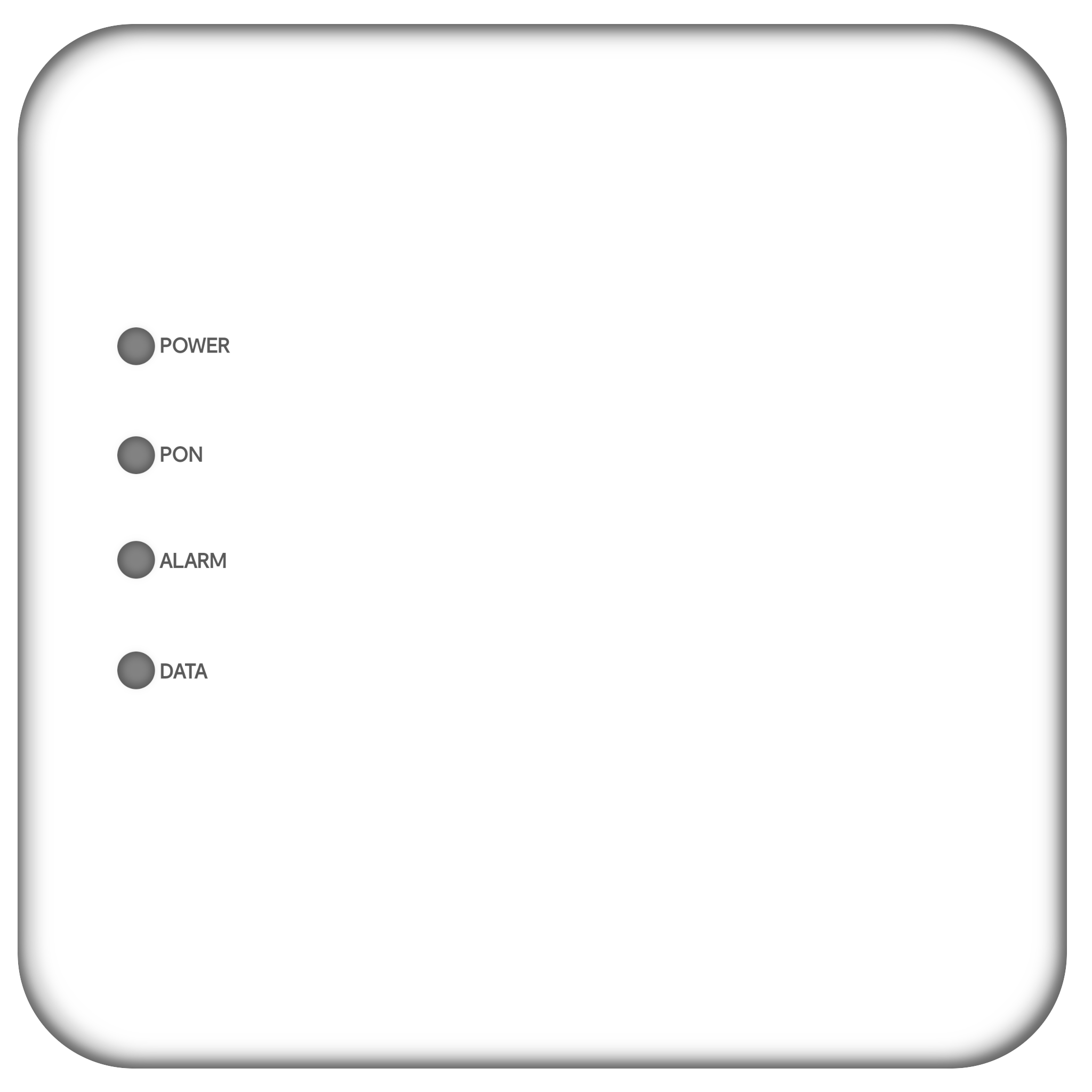
Check that the power cable is securely connected to both the ONT and a working mains power socket. Make sure that the socket is switched on.
If you still don't have power, try plugging the ONT into a different mains power socket to make sure that the issue isn't with the socket itself.
If you've tried multiple power sockets and are still having trouble, it's possible that your ONT or power cable is faulty. In this case, please contact our Technical Support team for further assistance.
Is your ONT Alarm or Power light red, or PON off?
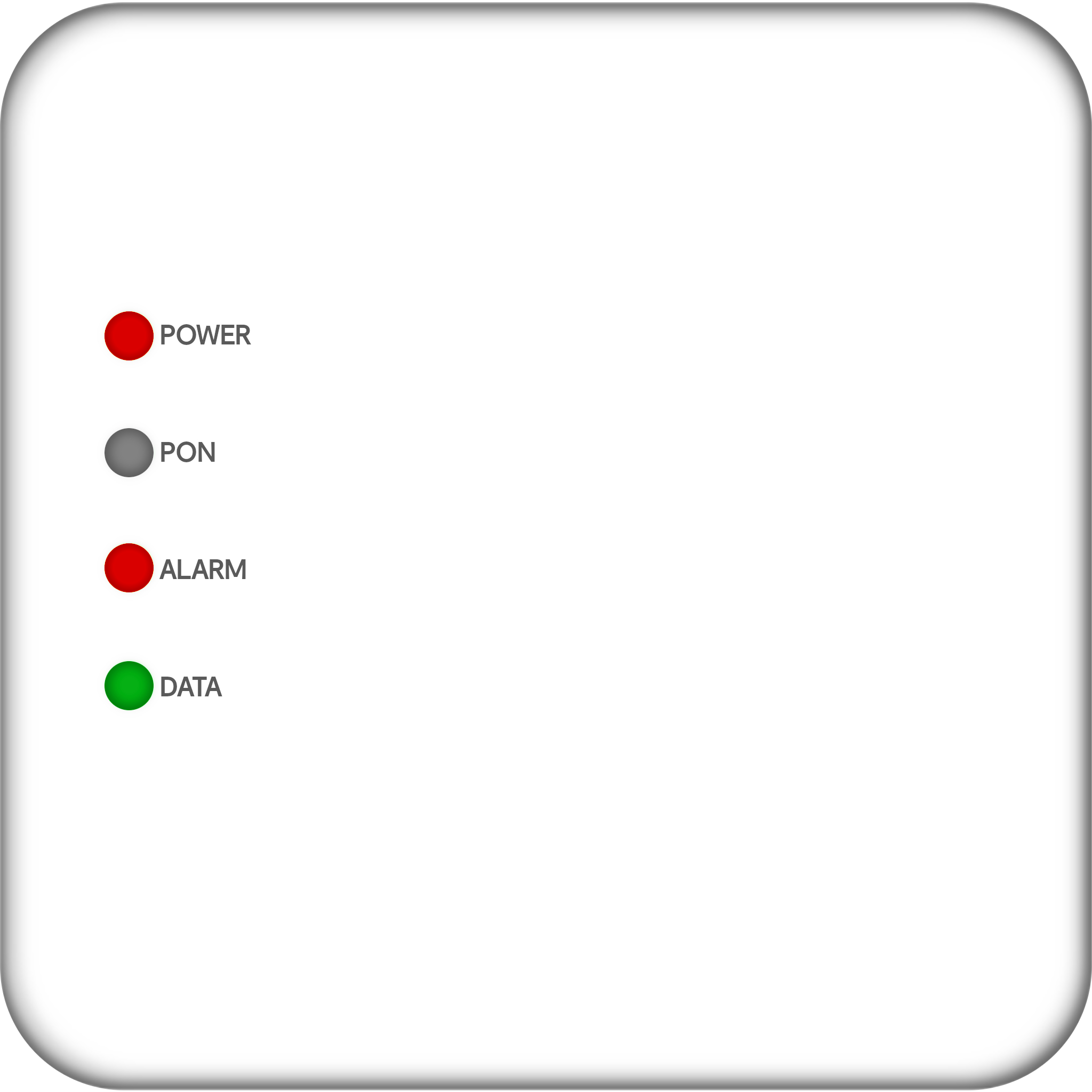
Restart your ONT, disconnect the power cable for at least a minute before reconnecting it. Wait for around 2 minutes for the ONT to come back online to see if the lights no longer indicate an issue.
It may be you're affected by a wider issue in your area, you can check for outages on our Service Alerts page.
If you're in the clear, we'll try resetting your ONT.
If the lights still show the same issue. Get a pin, unfolded paper clip or a SIM card removal tool, then continuously press into the reset hole on the underside of your ONT for 10 -15 seconds.
All lights on your ONT go off or flash. Then release the button and wait around 2 minutes for your ONT to reset.
Is your ONT Data light off?
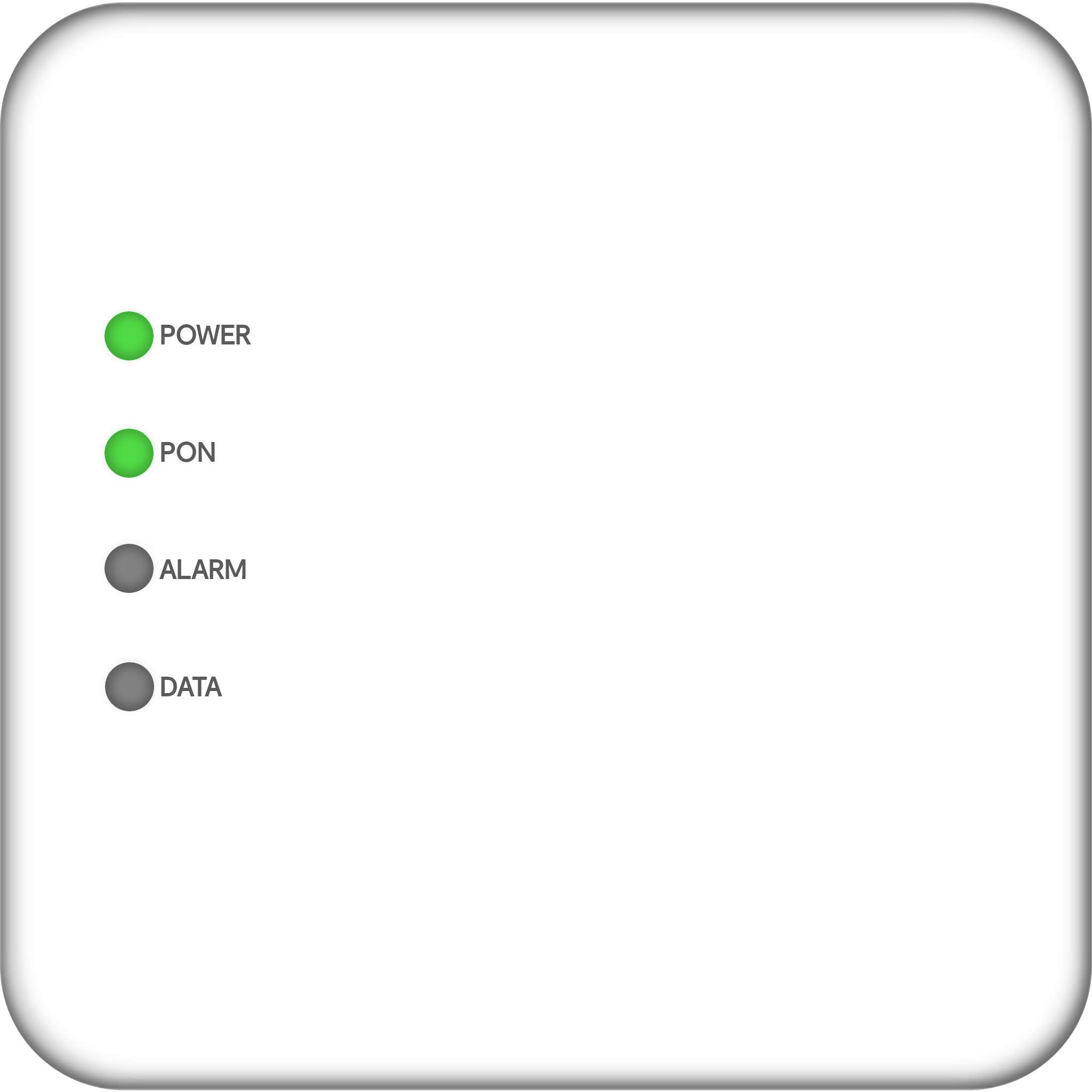
Make sure the Ethernet cable connecting your ONT to your router is secure and in place. This will be going into a Yellow socket and may be labelled "ETHERNET" on the underside of your ONT.
If you would like to check that the other side of the cable is going into the right port on your router you can find a guide here if you have a FRITZ!Box and here if you're using an eero.
If the cable is secure at both ends. Test an alternative Ethernet cable using the same steps above.
Is your ONT power light flashing Green or solid Amber?
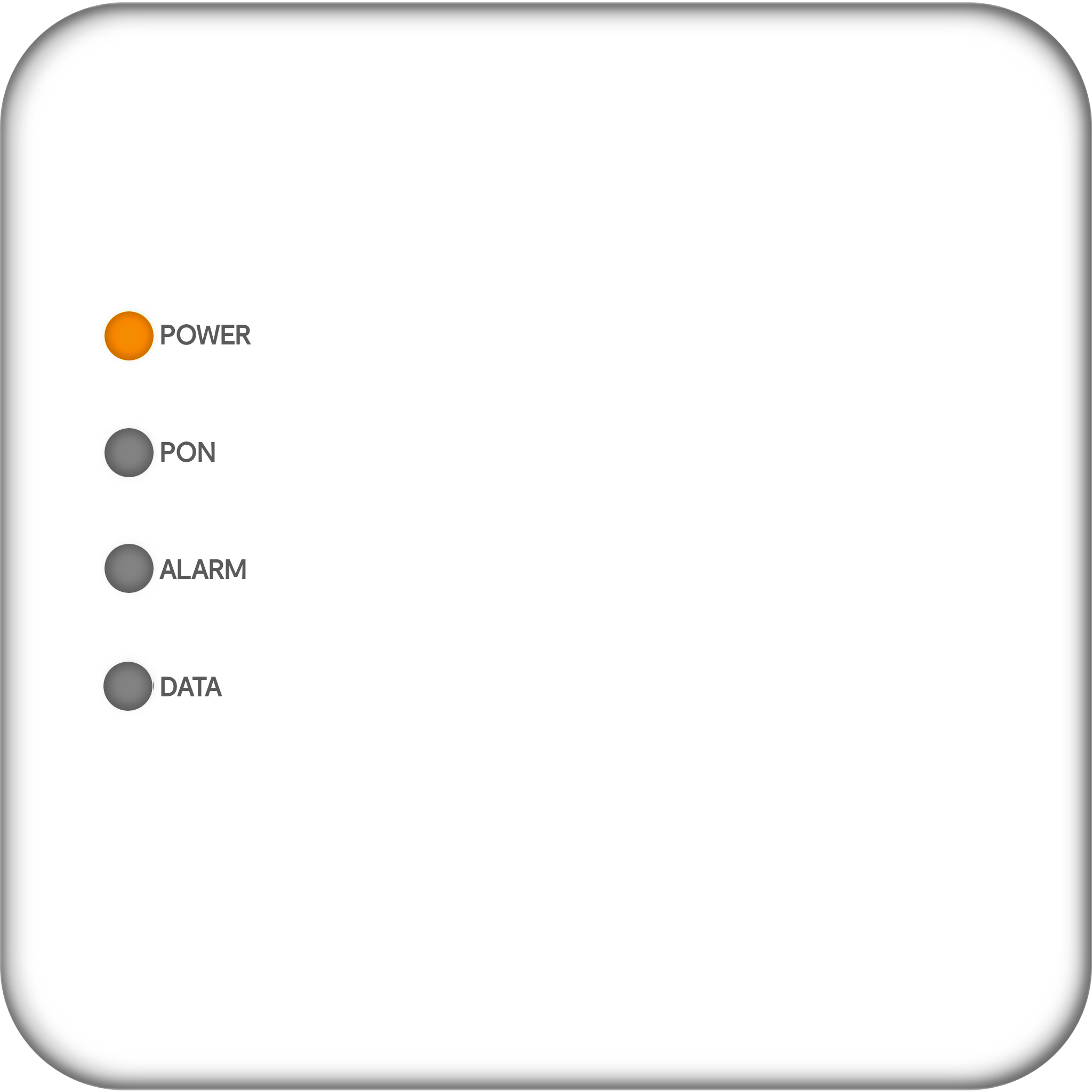
When the power light flashing green, this indicates that the device has just powered on or is performing a "Firmware" download; when the light goes Amber, then the device is installing the software.
It is recommended that you leave this device for a short period of time while it carries out this update, this should take no longer than 15-20 minutes.
Still experiencing issues?
Does your ONT show all of the correct lights but you still don't have a connection?
It may be that you need some alterations to your Router Settings. You can find a handy guide to walk you through what to check/change here.
Contacting Technical Support
If the above steps do not resolve your connectivity issues, please contact our Technical Support team for further assistance.