
 Sign in to MyAccount
Manual Router Settings
Full Fibre Openreach
Before you start
Before setting up your router manually, make sure you have your broadband login details (username and password). If you need help finding them, see:
1. Log Into Your FRITZ!Box
- Start by finding the "FRITZ!Box Password" on the underside of your router
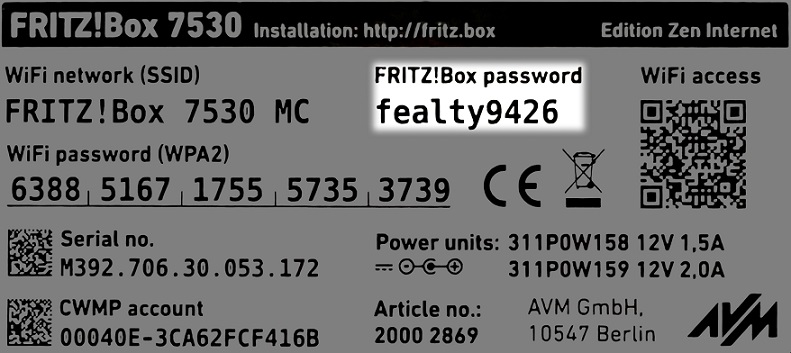
- Using one of your devices, open your web browser of choice and go to http://192.168.178.1 (when connected to your router via WiFi or a Wire)
Note: If using a Smartphone, it's recommended to disable your Mobile Data connection during this setup. - You'll then be shown a log in screen with an empty "Password" field, enter the found password and click "Log In"
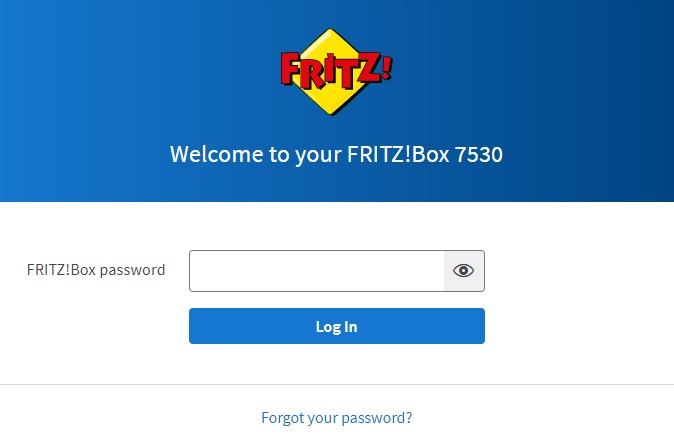
Note: You can also find these steps on our "How To" YouTube Video
2. Internet Settings
Now you're logged in, select the following menu options:
- "Internet" on the left-hand side of the page
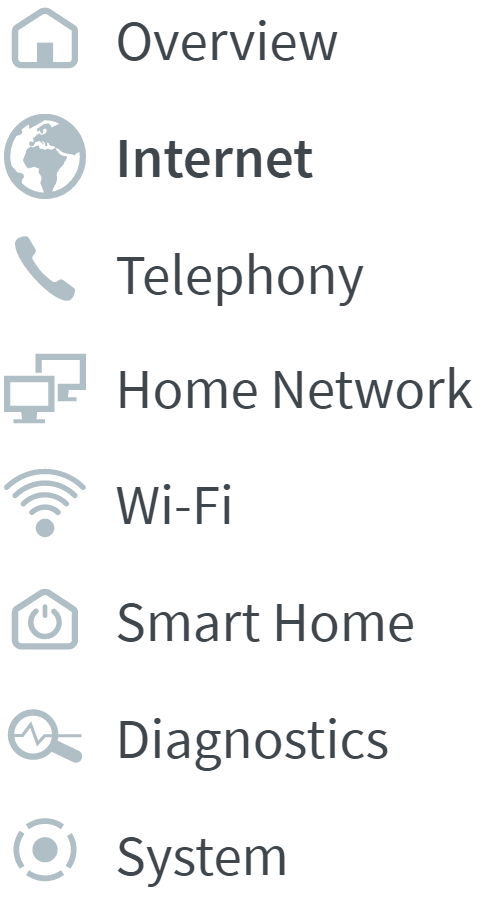
- "Account Information" within this
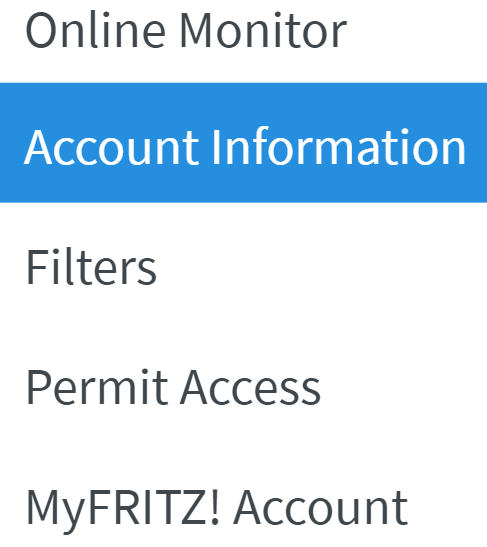
3. Entering Account Information
Now enter the following details:
- "Internet Service Provider" set to "Zen Internet"

- "Username" enter your "Zen username" (e.g. zen123456@zen)
- "Password" enter your "Zen password"

4. Changing Connection Settings
- Click "Change Connection Settings"

- Ensure "Maintain permanently" is selected

- Select "Via an external modem" as the connection type

- Enter "1000" for "Upstream" and "Downstream" within "Data Throughput"

- Ensure "VLAN Enabled" is unchecked.
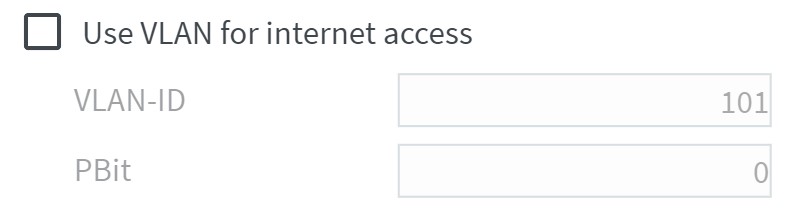
- Click "Apply" to save settings

Contacting Technical Support
If the above steps do not resolve your connectivity issues, please contact our Technical Support team for further assistance.