
 Sign in to MyAccount
Updating Contact Information and Preferences in cPanel
Your Contact Information in cPanel
Your contact details in cPanel help you receive important information, including account updates, security alerts, and password reset emails. You might want to update these if you’ve changed your email address, want to add a backup contact, or simply want to make sure password resets go to the right place.
Keeping this information up to date is a good habit. If your main inbox becomes unavailable or reaches its limit, cPanel may not be able to reach you when it really matters. For this reason, cPanel recommends using an email address that isn’t hosted on the same account. A contact email address is also required for password resets to work.
1. Updating Contact Information
- First, open your cPanel and log in (for a guide on how to do this look here)
Once you have logged in, search for the Preferences section
- Select Account Preferences
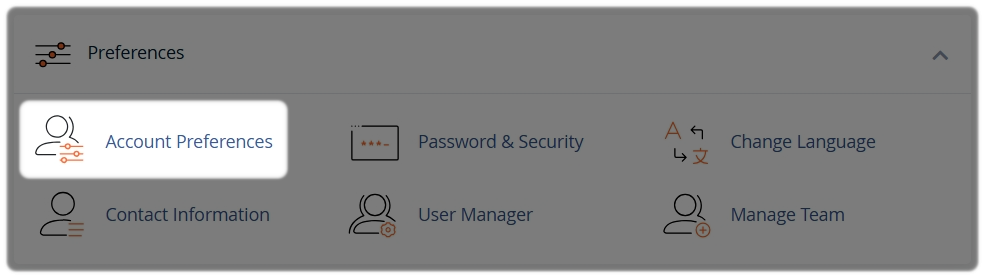
2. Creating the Account
- Add your main email address to the Primary Contact field.
For security, you’ll be asked to enter your account password before the change is saved.
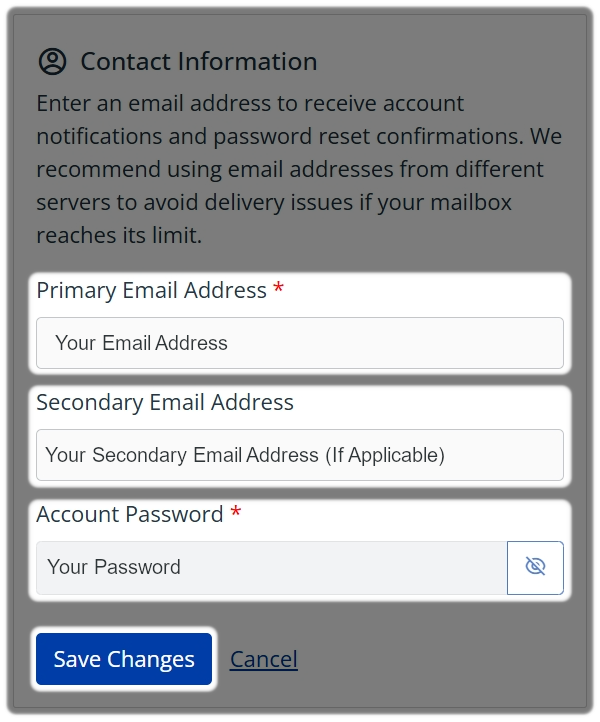
If possible, add a backup email address as well. Using addresses on different email services helps make sure you still receive important messages if one inbox becomes unavailable or runs out of space.
3. Pick your Notifications Preferences
You can turn on notifications for things like changes to your contact email address, disk space and bandwidth warnings, and AutoSSL updates. These alerts help you spot potential issues early, before they become a problem.
Once you're happy with your selection
- Select Save to apply your changes
Test your setup
Make sure you can access the email address you’ve added. If you ever need to reset your cPanel password, the reset code will be sent there. You’ll also need to use the same browser session that started the password reset.
Tip: Keep at least one contact email address that you check regularly and can receive password reset messages. It’s a small step that can save a lot of hassle later on.