
 Sign in to MyAccount
Creating a cPanel Backup
Important Information
You manage and back up your own data. Zen doesn’t manage or guarantee backups or disaster recovery for individual customer accounts, so we recommend having a backup plan that works for you.
Why Create a Full cPanel Backup?
A full cPanel backup creates a complete snapshot of your hosting account — including your website files, databases, email accounts, and settings. It’s an essential step if you want to:
- Protect your data
- Move your hosting to another provider
- Keep a safe copy of your site before making changes
Because full backups can be large, always make sure your hosting account has enough free space before you begin. If your account is nearly full, the backup may fail.
For extra protection, speak with whoever manages your data or your IT team about keeping local backups too (e.g., files stored on your computer or exported emails). A strong backup strategy includes both server‑side and offline copies.
1. How to Create a Full Account Backup in cPanel
Log in to your cPanel. If you need help, follow our guide How to log into your cPanel
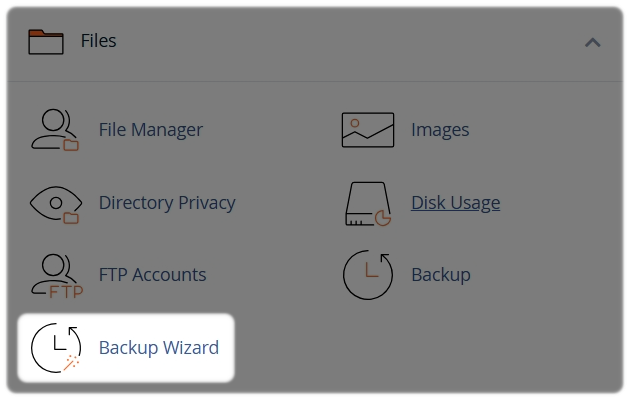
Once logged in, look in the Files section:
- Select Backup Wizard
2. Open the Full Backup Tool
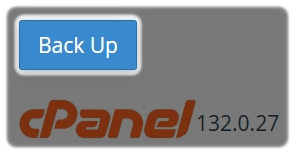
- Select Back Up
- Select Full Backup
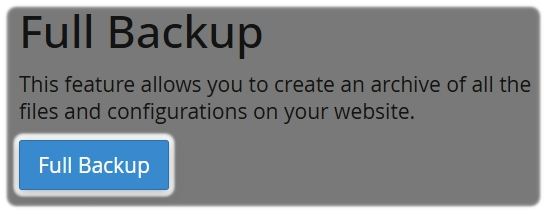
This option is different from partial backups, it collects all account data into one downloadable file. Because it includes everything, the process may take some time to complete.
3. Choose Where to Save the Backup
cPanel will ask where to store the backup file. We recommend selecting Home Directory.
If you choose to save the backup inside your hosting account, make sure enough free space is available — full backups can be quite large.
- Enter Your Email for Notifications
Enter your email address so cPanel can let you know when the backup is complete.
This is especially useful for larger accounts, as the backup process may take a while.
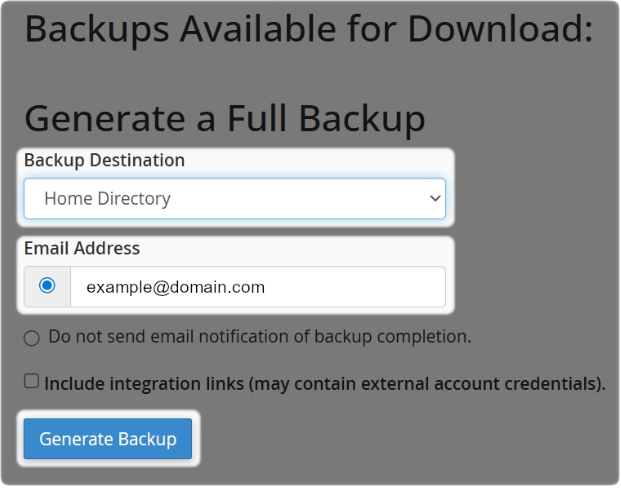
- Select the Generate Backup
cPanel will begin generating the backup file. Try not to make changes to your website or emails while it runs — this helps ensure the backup is consistent.
4. Download and Store the Backup Safely
Once the backup is ready, download it and store it somewhere secure.
For best practice:
- Keep multiple copies
- Store at least one copy outside your hosting account
- Rotate backups regularly
- Keep an offline version (e.g., on a computer or external drive)
A backup is only useful if you can access it when you need it.
5. Full Backups vs Partial Backups
cPanel also allows you to create partial backups, which cover:
- Home directory
- Databases
- Email settings
Partial backups are easier to restore on your own.
Full backups usually need assistance from an administrator or IT professional to restore.
Choose the backup type that best fits your needs:
- ✅ Full backup — best for complete protection of your account
- ✅ Partial backup — ideal for restoring specific parts of your website or email