
 Sign in to MyAccount
Using the MultiPHP INI Editor
MultiPHP INI Editor
The MultiPHP INI Editor in cPanel lets you adjust common PHP settings without editing configuration files manually. It’s a safe and simple way to fine‑tune how your website runs, even if you’re not a developer.
You can use it to:
- Increase upload limits for media files or backups
- Give scripts more memory
- Extend time limits for slower imports or updates
- Adjust security‑related settings, such as hiding PHP errors
For most customers, the built‑in Basic Mode is all you’ll need. Advanced users can also make direct changes using Editor Mode.
Tip: Only increase limits when you need to. Higher values can use more server resources, and some defaults are in place to protect your site from errors or runaway scripts.
1. Open the MultiPHP INI Editor in cPanel
Log in to cPanel, If you need help signing in, see our guide here.
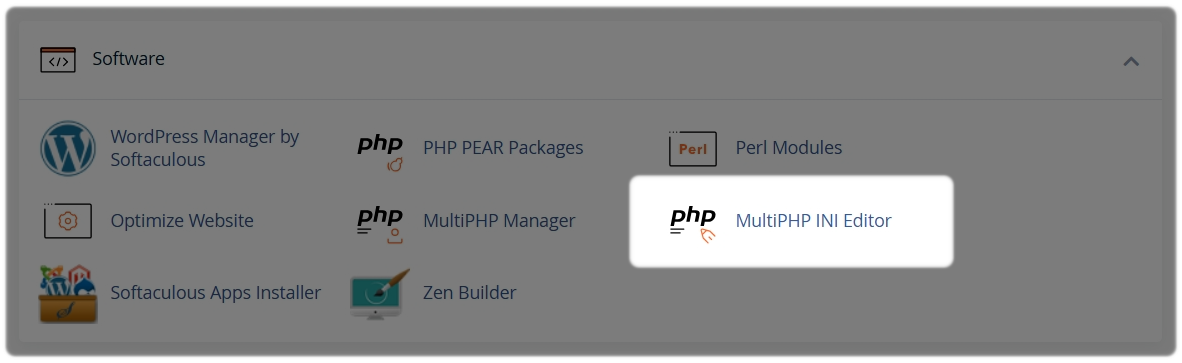
In cPanel, scroll to the Software section:
- Select MultiPHP INI Editor
2. Update settings using Basic Mode
In Basic Mode, adjust common PHP options using input fields if you select Editor Mode for direct edits. It will open a blank editor page if you don’t have a php.ini file.
Select a location where to apply the settings
Select either:
- Your Home Directory (applies settings to all sites), or
- A specific domain (recommended if you only need changes for one site)
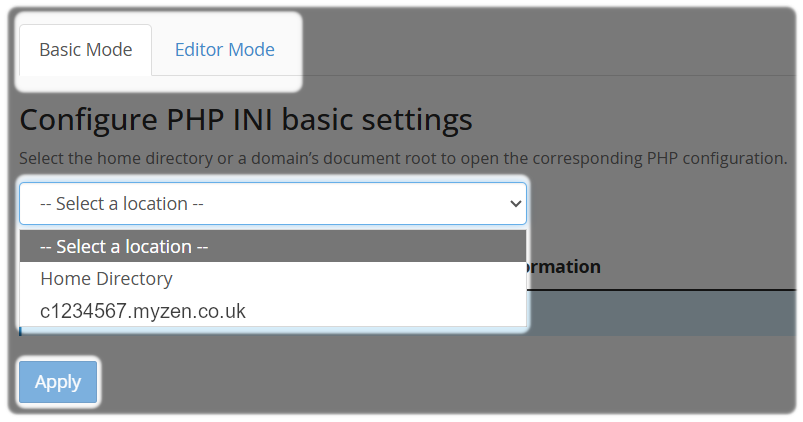
After you have made any changes, select Apply to save your settings. Changes usually take effect straight away.
3.Common PHP settings explained
Below are some of the common options:
memory_limit
The maximum amount of memory a PHP script can use. Increase it if big plugins, imports, image processing, or complex apps run out of memory.
upload_max_filesize
The largest file size of one uploaded file. Change it if users need to upload bigger images, PDFs, archives, or backups.
post_max_size
The maximum size of data sent in a single request (this should usually be larger than upload_max_filesize). If it’s too small, form submissions and uploads might fail or come through empty.
max_execution_time
How long a PHP script is allowed to run before it times out. Increase it for long imports, exports, API jobs, or heavy admin tasks.
max_input_time
How long PHP spends processing incoming data, such as POST and GET. This matters when forms or uploads are large or slow.
max_input_vars
The maximum number of input variables allowed in a PHP request (often helpful for large forms or page builders).
Things to keep in mind
- Make small changes first, then test your site.
- If something stops working, you can always return values to their defaults.
- Some limits are designed to protect your hosting environment, so avoid setting values higher than you need
Need Help?
Feel free to contact our Web Hosting team.