
 Sign in to MyAccount
Change your WiFi Name
Thinking of changing your Wi-Fi name
Whether your Fritz!Box from Zen is brand new or has been with you for a while, here’s an easy way to do it.
This guide can also help if you're replacing an existing router, and want to set the new router's Wi‑Fi name and password to match those used on your previous router. This can help your devices reconnect automatically without needing to be set up again.
Important: Changing the Wi‑Fi name and password will temporarily disconnect any devices currently connected to the router. For this reason, we recommend making these changes using a wired connection, or ensuring that only the device you're using to configure the router is connected via Wi‑Fi.
1. Log Into Your FRITZ!Box
- Start by finding the "FRITZ!Box Password" on the underside of your router
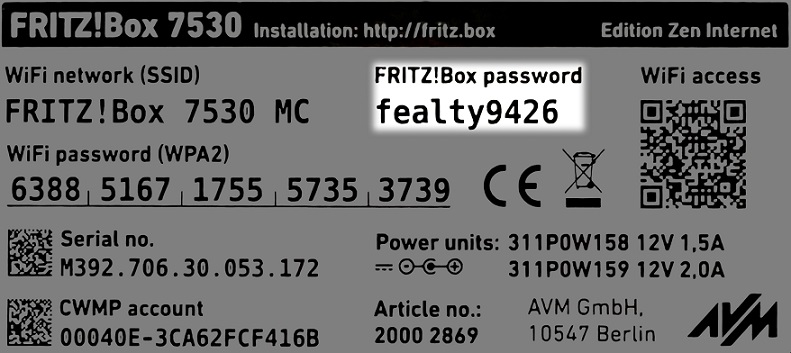
- Open your web browser of choice and go to http://192.168.178.1 (when connected to your router via WiFi or a Wire)
- You'll then be shown a log in screen with an empty "Password" field, enter the found password and click "Log In"
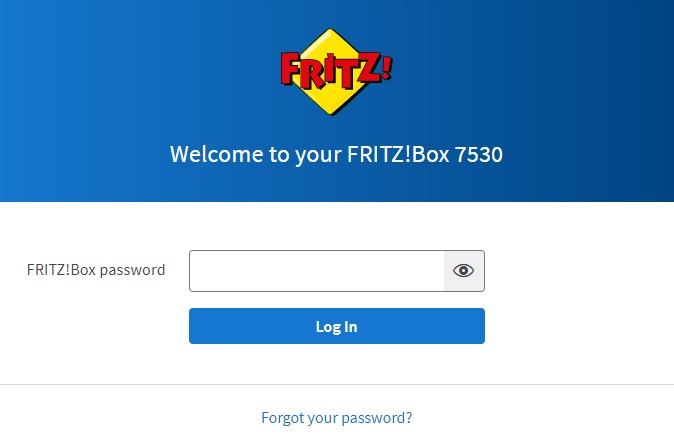
Note: You can also find these steps on our "How To" YouTube Video
2. WiFi Settings
Now you're logged in, select the following menu options:
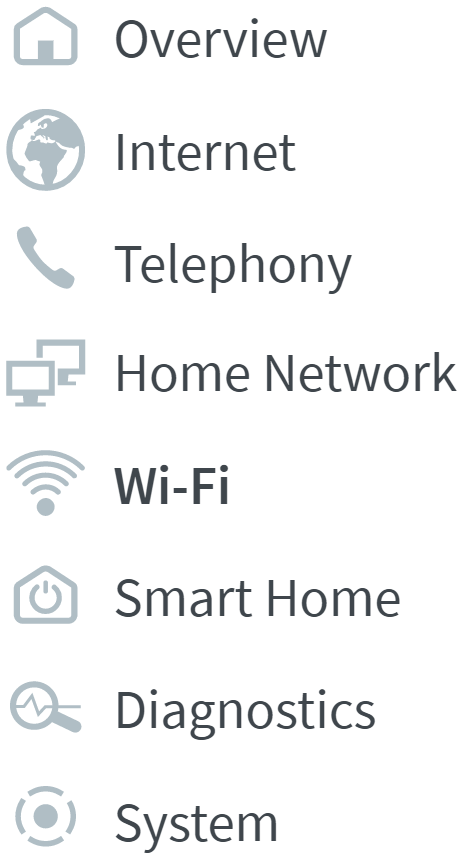
- "Wi-Fi" on the left-hand side of the page
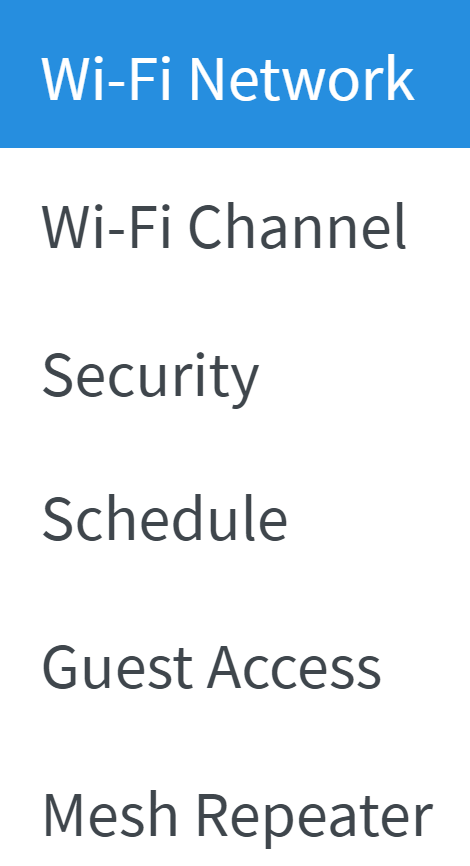
- "Wi-Fi Network" within this
3. Changing the Name
- Change the "Name of the WI-Fi Network (SSID)" text box to whatever you wish your WiFi name to be.
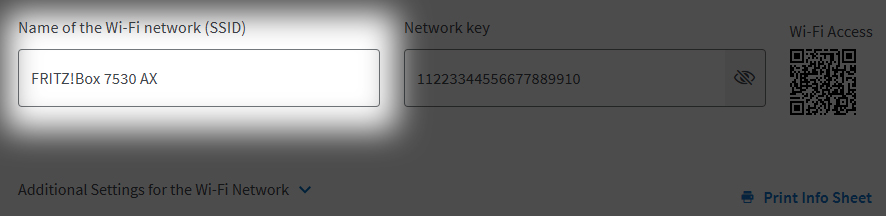
- Click "Apply"

Contacting Technical Support
If required, please contact our Technical Support team if you need further assistance.