
 Sign in to MyAccount
Optimise your Website in cPanel
How to use Optimise Website in cPanel
The Optimize Website feature in cPanel can help improve your website's performance by enabling compression for content served from your hosting account.
Compression reduces the size of files sent from your server to your visitors' browsers, which can help pages load faster and reduce bandwidth usage.
For many websites, enabling compression is a straightforward way to improve performance. However, some websites already handle compression through a caching plugin, CDN, application settings or a custom server configuration. If you're unsure how your website is set up, we recommend checking with your developer before making changes
Before you get started
Keep the following in mind:
- Compression can improve website performance, but the right option depends on how your site is configured.
- Your website may already be using compression through a plugin, CDN or application-level settings.
- After making any changes, test your website to make sure everything displays and functions as expected.
- If your website is managed by a developer or agency, check with them before changing the setting in cPanel
1. Open the Optimize Website feature in cPanel
Log in to your cPanel. If you need help, follow our guide How to log into your cPanel.
Once logged in, scroll to the Software section of cPanel and select:
- Optimize Website
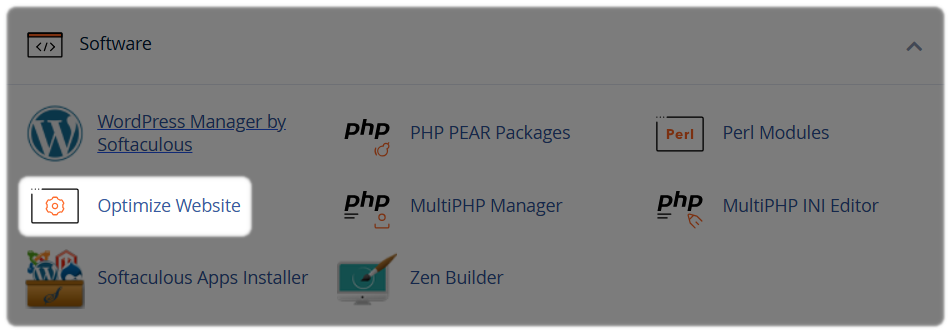
You can use the search bar at the top of cPanel to find Optimize Website, then select it from the Software section if required.
2. Choose a compression setting
You'll see the following options:
- Disabled – turns compression off.
- Compress All Content – enables compression for supported content types.
- Compress the specified MIME types – allows you to choose which content types to compress.
Select your preferred option, for most websites, Compress All Content provides the greatest performance benefit.
Before enabling it, make sure compression isn't already being handled elsewhere, or check with your developer if you're unsure.
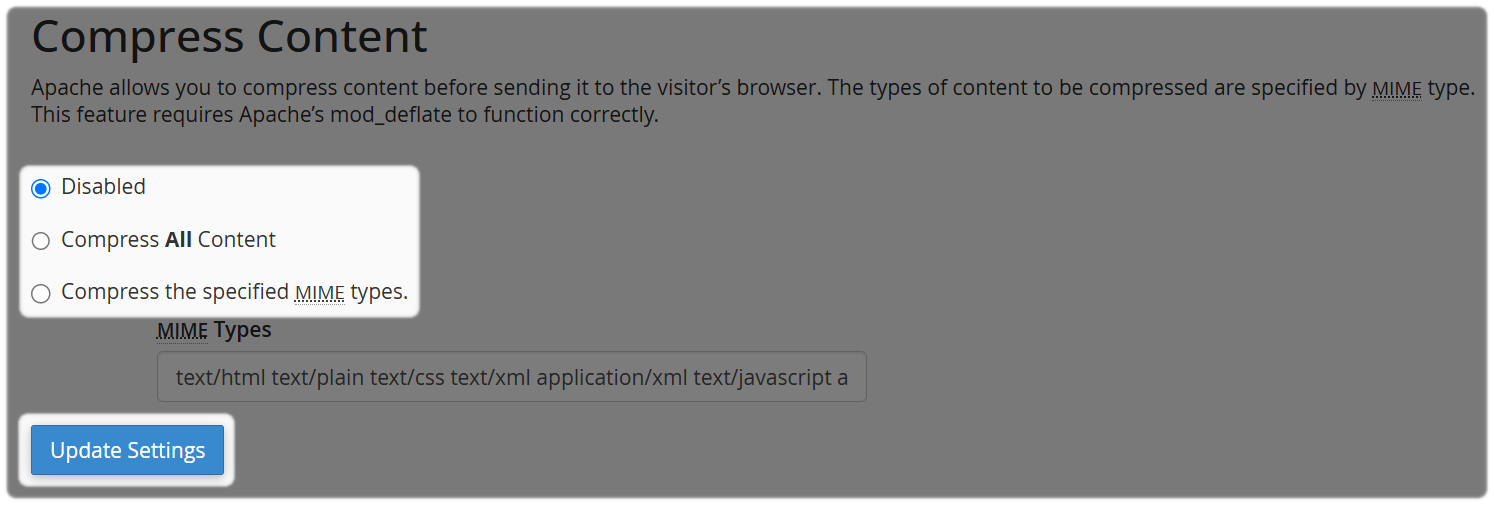
Once you have selected your preferred option select "Update Settings" to apply the new configuration.
3. Test your website
Visit a selection of pages across your website, particularly those that include:
- Images
- Forms
- Navigation menus
- Scripts or interactive features
Check that pages load correctly and that everything functions as expected.
Review for any issues, if you notice anything unusual, such as display problems or functionality issues, revert the setting or speak to your developer for advice.
Need Help?
Feel free to contact our Web Hosting team.