
 Sign in to MyAccount
Calendars and Contacts on cPanel Email
Sync your cPanel email calendars and contacts
This guide is for Zen customers using cPanel Hosting email. It does not apply to residential email addresses ending in @myzen.co.uk or @zen.co.uk, or to legacy domain email services.
You can connect your cPanel email account to compatible mail applications, allowing your calendars, contacts and tasks to stay synchronised across your devices. This can help you:
- Sync calendars and address books between your cPanel mailbox and supported applications.
- Keep appointments and contacts up to date across your computer, mobile device and webmail.
- Share calendars, contacts and task lists with other users on the same webmail service.
cPanel uses two standard protocols, CalDAV and CardDAV, to synchronise calendar and contact information with supported applications. If your chosen mail app supports these protocols, you may be able to add your cPanel email account and manage your calendars, contacts and tasks directly from the app.
Before you begin
Zen provides access to this functionality as part of cPanel Hosting. However, our support is limited to the steps covered in our guides. As mail applications are developed and maintained by third parties, we cannot provide assistance with how they store, synchronise or display your data.
Important information
Before setting up calendar and contact synchronisation, please be aware of the following:
- cPanel has only officially tested this functionality with Apple applications and Mozilla Thunderbird.
- Other applications that support CalDAV or CardDAV may work, but compatibility is not guaranteed.
- Microsoft Outlook and Android devices are not directly supported. cPanel recommends using third-party plugins for these platforms, but Zen is unable to provide support for their installation or troubleshooting.
- Calendars and address books cannot be created directly within Roundcube. These must first be created through the relevant management interface.
- Day-to-day management of contacts, calendars and task lists should be carried out within your mail application. cPanel and webmail provide basic administration of these features rather than full management capabilities.
Calendars and Contacts with cPanel Email
Most supported applications will attempt to detect your Calendar and Contact settings automatically. If this doesn't happen, you may need to enter the connection details manually.
Typical setup information includes:
- Email address
- Email password
- Server name
- Port number (usually 2080)
- CalDAV or CardDAV URL (for advanced manual setups)
Finding your settings:
- Log in to your cPanel, a guide for this can be found here if required. see - How to log into your cPanel.
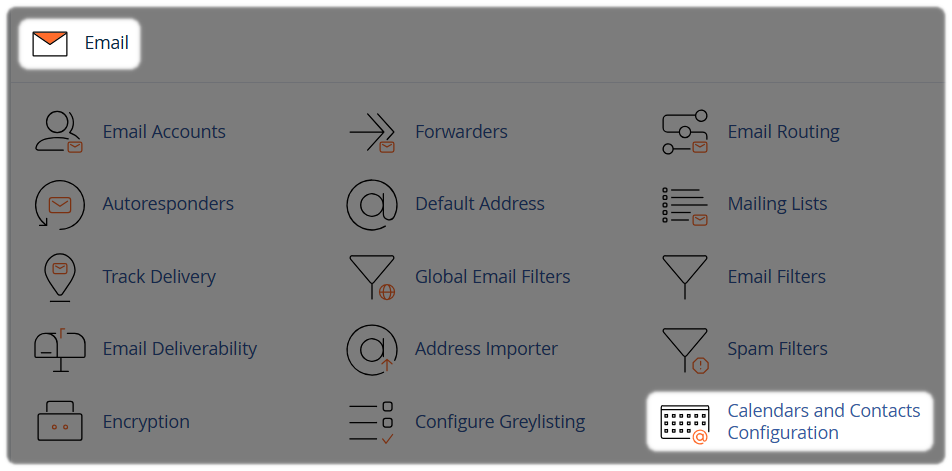
- Within the Email section select Calendars and Contacts Configuration.
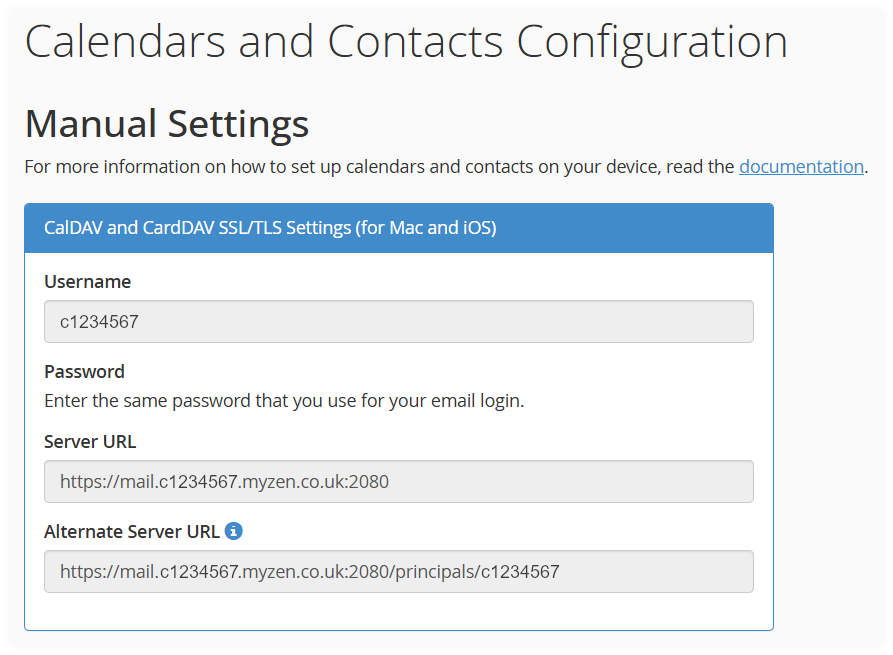
Locate, save and keep safe the following information:
- Username
- Password guidance
- Server URL
- Alternative server URL
- Note, by selecting the documentation link from within the cPanel portal, more information can be found.
Also, Save the following information:
- Direct Calendar and Address Book URLs
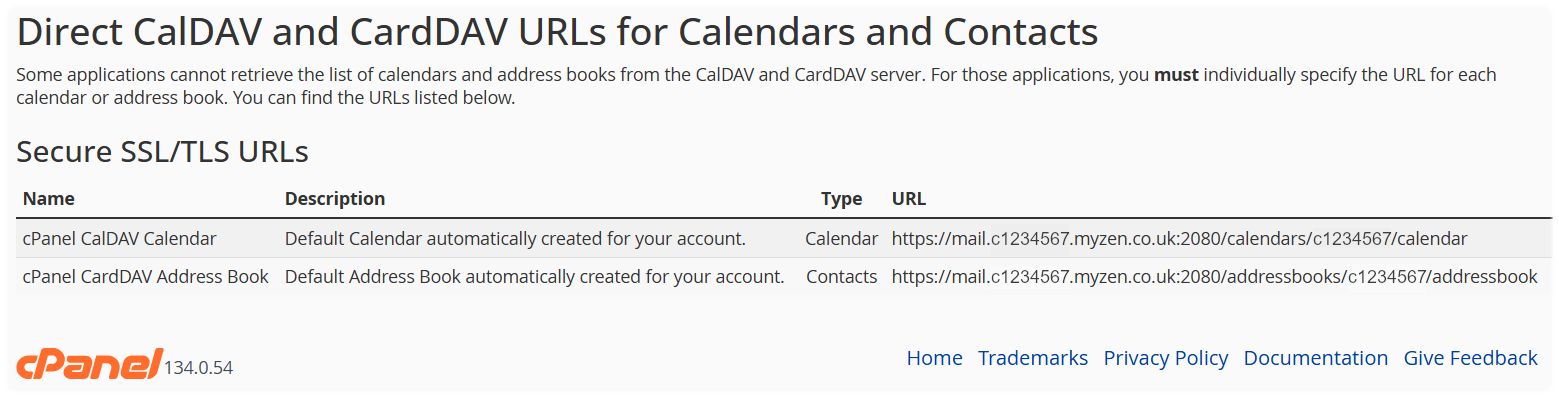
- Enter these details into your chosen application if automatic configuration fails.
Note: Configuration URLs are designed for applications and are not intended to be opened in a web browser.
- If your application does not support automatic discovery, you may need to use the alternative server URL or direct CalDAV/CardDAV URL provided.
cPanel uses the term Collections to describe individual calendars, address books, and task lists. You can use the management interface to:
- View existing collections
- Create new calendars, address books, and task lists
- Rename collections
- Change calendar colors
- Delete collections you no longer need
Creating a collection
- Log in to your cPanel, a guide for this can be found here if required. see - How to log into your cPanel.
- Within the Email section select Calendars and Contacts Management.
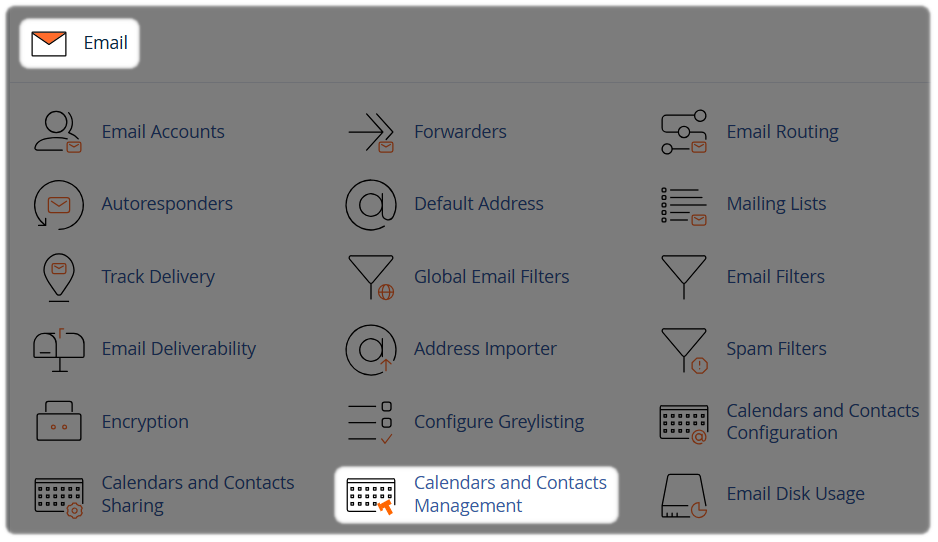
- Select Create
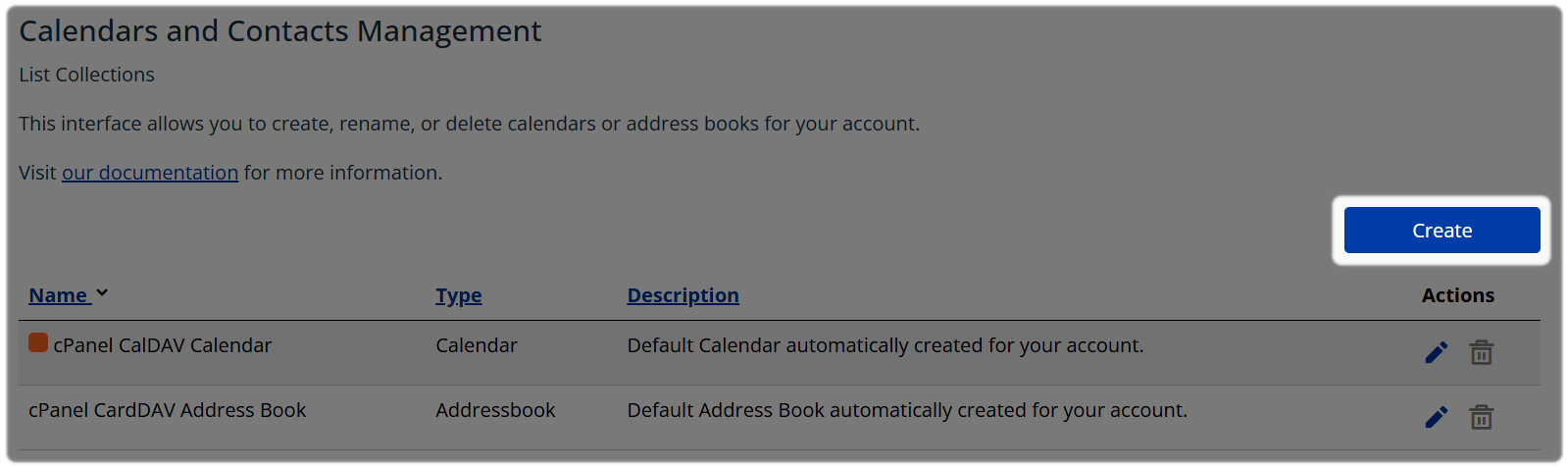
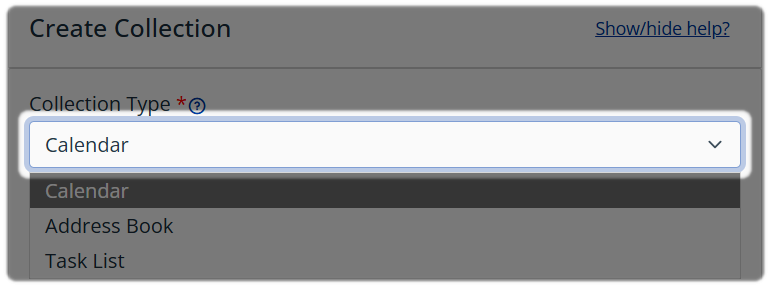
In the Collection Type drop-down field,Choose one of the following:
- Calendar
- Address Book
- Task List
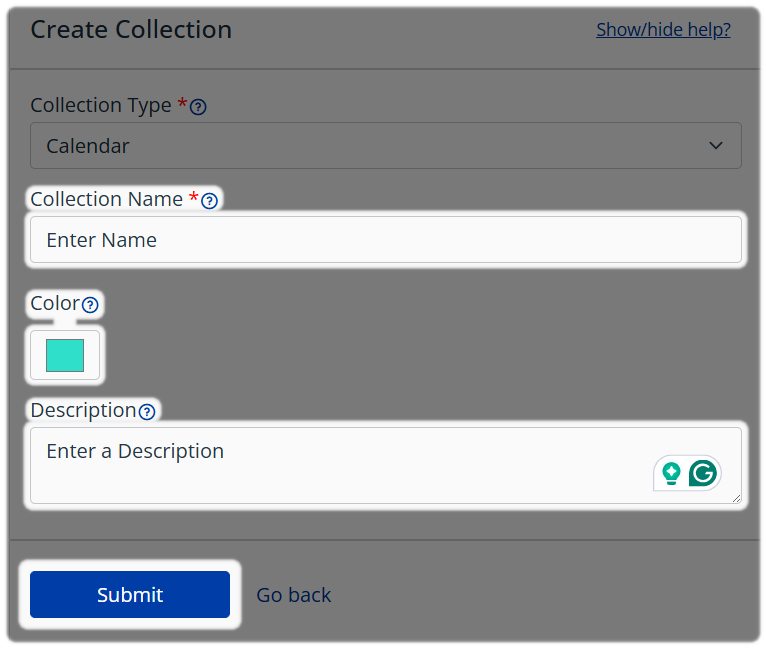
- Enter a name
- Add a description if required
- Choose a color for calendar collections
- Select Submit
Once a collection has been created you are able to edit or delete at any time.
Editing a Collection
From the Calendars and Contact Management page. To update a collection:
- Locate the collection in the list that you want to edit
- Select the Edit (pencil) icon
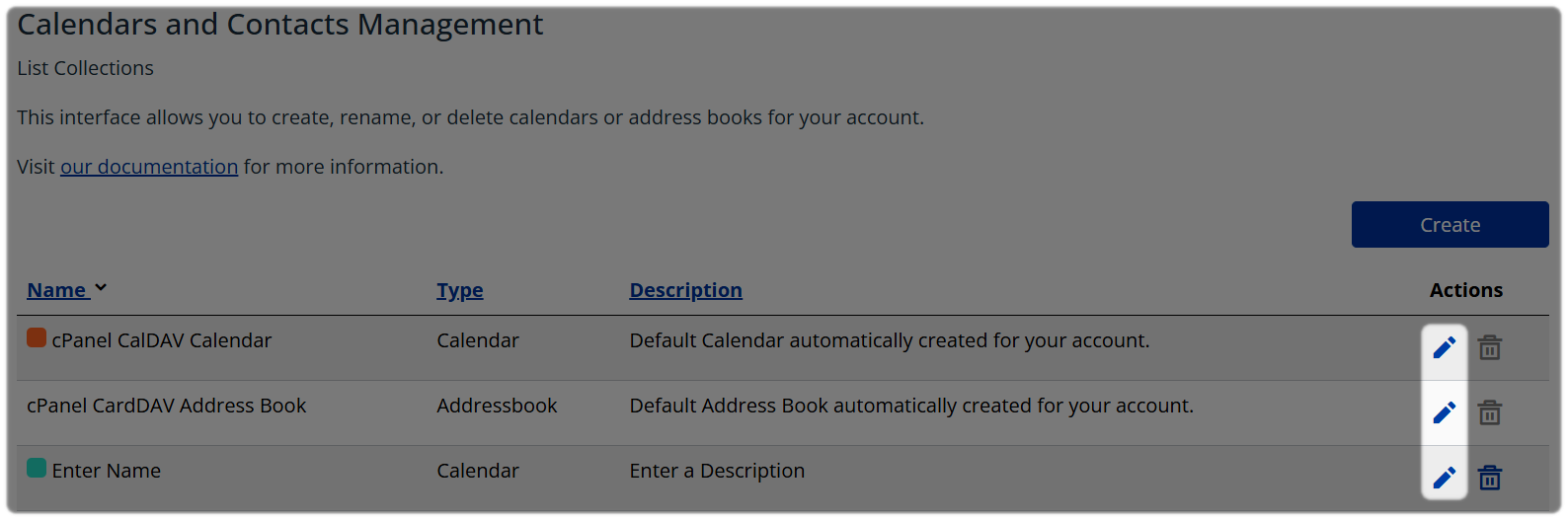
You will be presented with similar page to the Create Collection page, here you can
- Make your changes
- Select Submit to Save when complete
Deleting a Collection
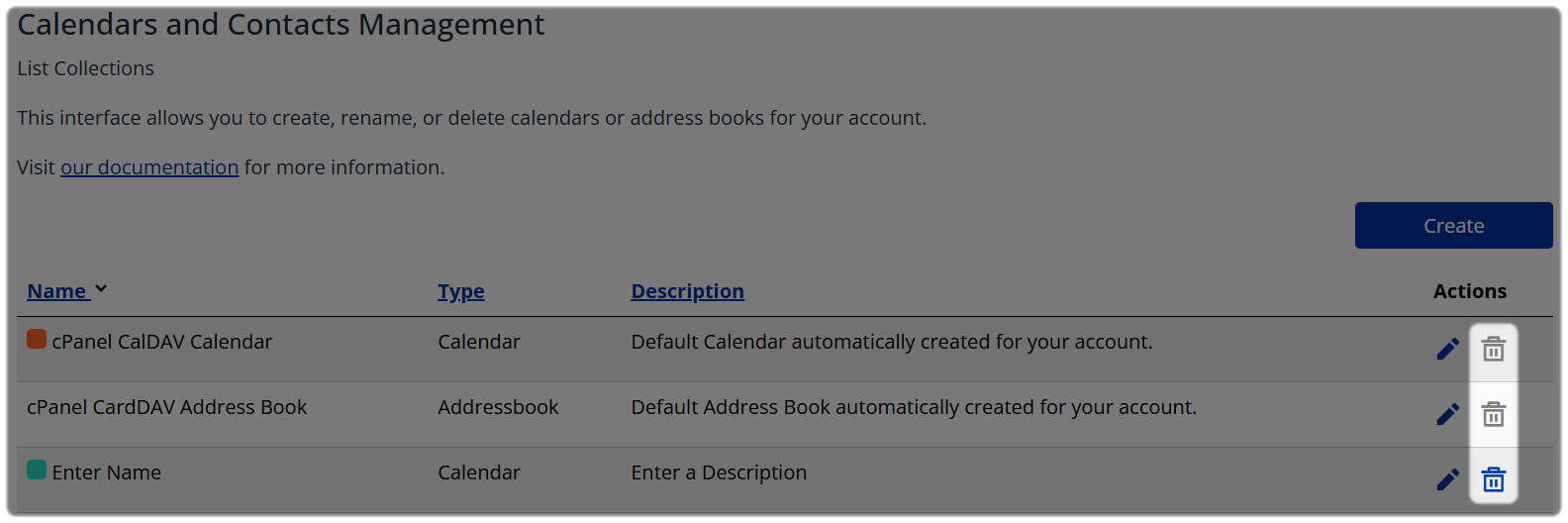
From the Calendars and Contact Management page. To delete a collection:
- Locate the collection you wish to remove
- Select Delete
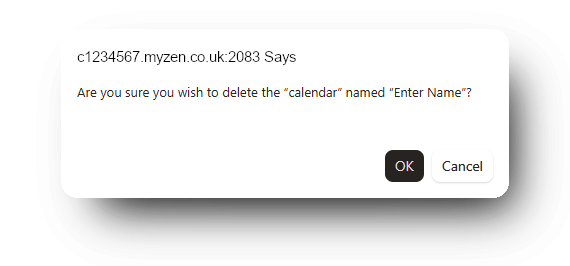
- Confirm the deletion
General tips
- The same feature also appears in Webmail, so you do not have to stay in cPanel to manage your own collections
- Create or change the collection once, then let the sync client pick it up
- If a you want to see the collection in Roundcube (Webmail), you must create it here first
You can share calendars and address books with other users on the same cPanel hosting account.
Sharing allows you to:
- Give another user access to a calendar or address book
- Choose whether they can view only or make changes
- Manage sharing permissions centrally
Before sharing
The following requirements must be met:
- Both users must belong to the same cPanel account
- The hosting account must contain at least two email mailboxes
- The calendar or address book must already exist
Creating a shared collection
- Log in to your cPanel, a guide for this can be found here if required. see - How to log into your cPanel.
- Within the Email section select Calendars and Contacts Sharing
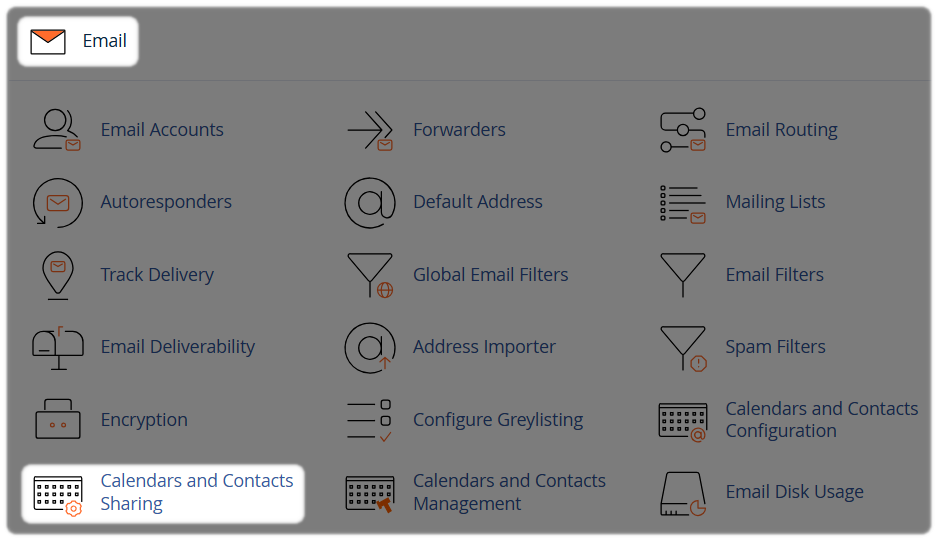
You will be present with a Calendars and Contacts Sharing Page
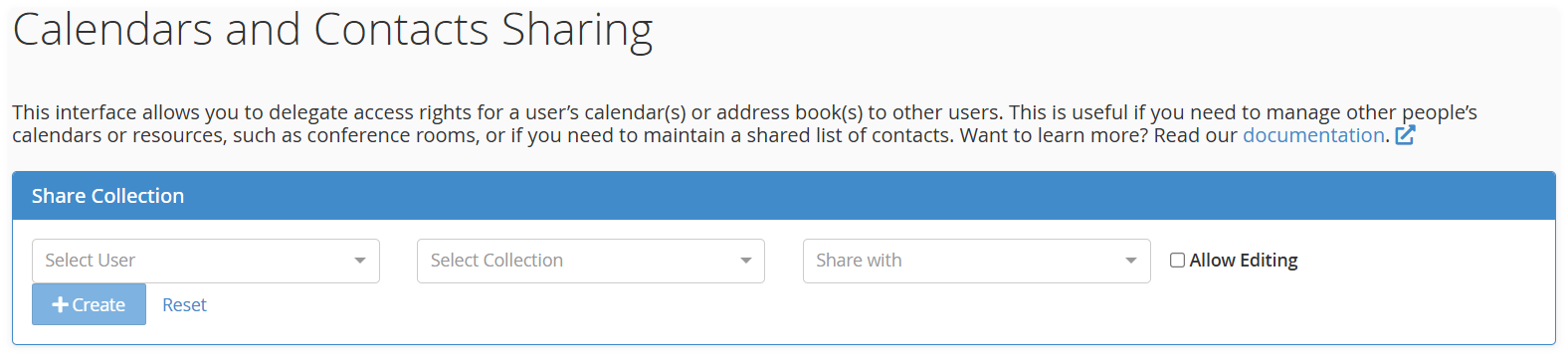
- Select the mailbox that owns the calendar or address book
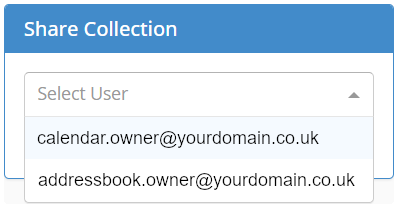
- Select the collection you want to share
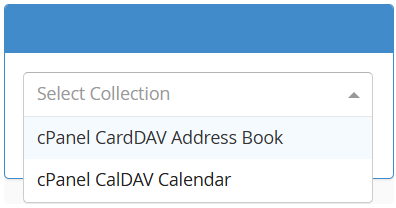
- Choose the mailbox that should receive shared access
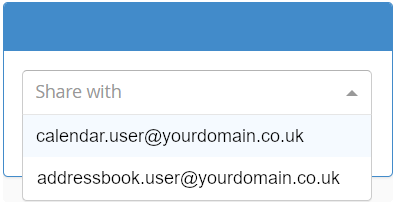
- If the user should be able to make changes, check the Allow Editing box, if Allow Editing is not selected, the recipient will have read-only access
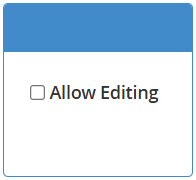
- Once you have selected your preferences, select Create

Managing shared collections
To change permissions later:
- Open the Shared Collections list
- Select the existing shared item
- Update the permissions as required
- Save your changes
To stop sharing:
- Open the Shared Collections list
- Select Delete beside the shared item
- Confirm the deletion
Note: Calendars and address books cannot be shared with users outside your cPanel hosting account.
Need a Hand?
If encountering problems, feel free to contact our Web Hosting team.