
 Sign in to MyAccount
Adding DMARC Records for your cPanel Domain
What is DMARC
If you’ve already set up DKIM and SPF records for your domain in cPanel, we recommend adding a DMARC policy as well.
DMARC, which stands for Domain-based Message Authentication, Reporting and Conformance, is a DNS record that adds another layer of protection for your domain.
It tells receiving mail servers what to do when an email appears to come from your domain but does not pass authentication checks, and it can also provide reports showing how your domain is being used for email.
This helps reduce the risk of:
- Phishing
- Protects your domain’s reputation
- Support better email deliverability
Before adding DMARC, make sure your SPF and DKIM records are already in place. For more information, please see:
1. Accessing Email Deliverability Settings
- First, open your cPanel and log in (for a guide on how to do this look here)
- Select "Email Deliverability" from the "Email" sub-menu
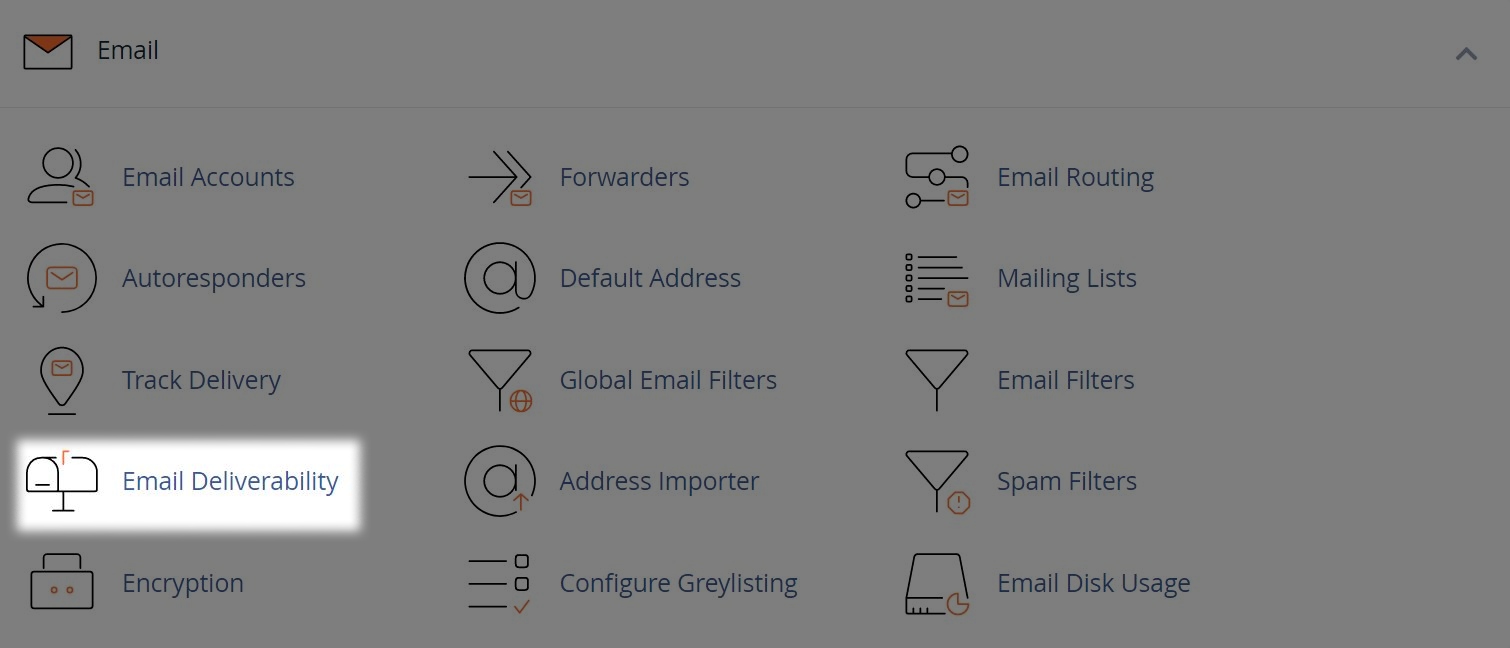
NOTE: If you're using external email servers instead of cPanel for sending your domain emails, you'll need to manually adjust the following cPanel Suggested DMARC policy. Please consult your IT Support to do this.
2. Finding Generated DKIM/SPF Records
- Find your domain name within the list and click the "Manage" button

- You'll see information for "DKIM" and "SPF" records, scroll down to the "DMARC" section
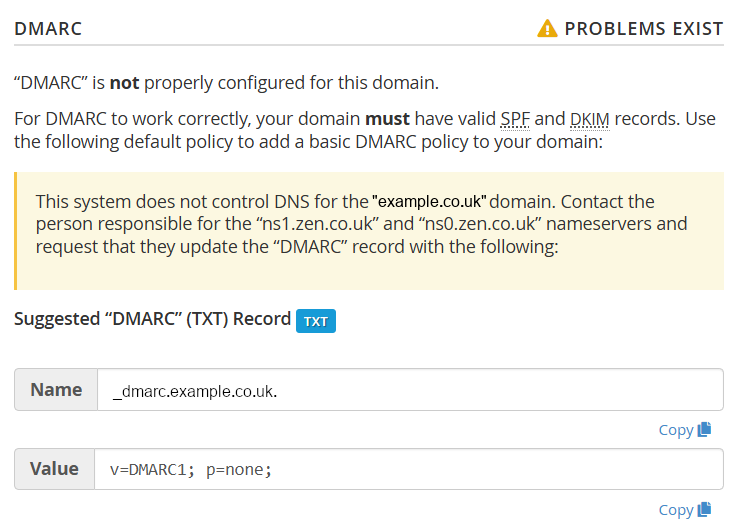
- You don't need to do anything with the information here yet, but keep this page open as we'll need it later.
NOTE: If you've registered your domain with a third party, or using external name servers, you'll need to add the DMARC with the SPF/DKIM records onto the DNS platform you use.
3. Logging into your Portal
- Go to the "My Account" section of the Zen website and enter your username or password
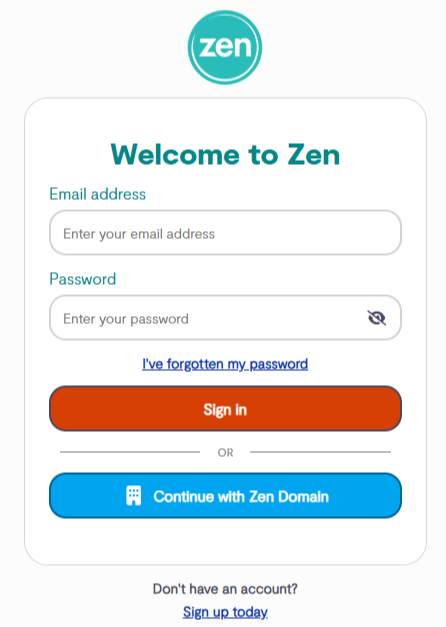
Note - If you are not signed up for the portal click the button to "Sign Up for a Zen Account"
4. Finding Your Domain Settings
- Click "My Services" tab at the top of the portal page
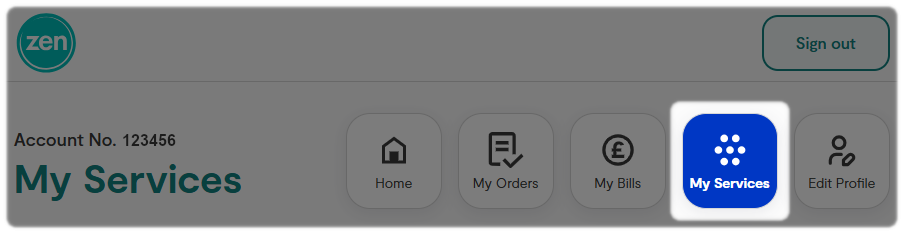
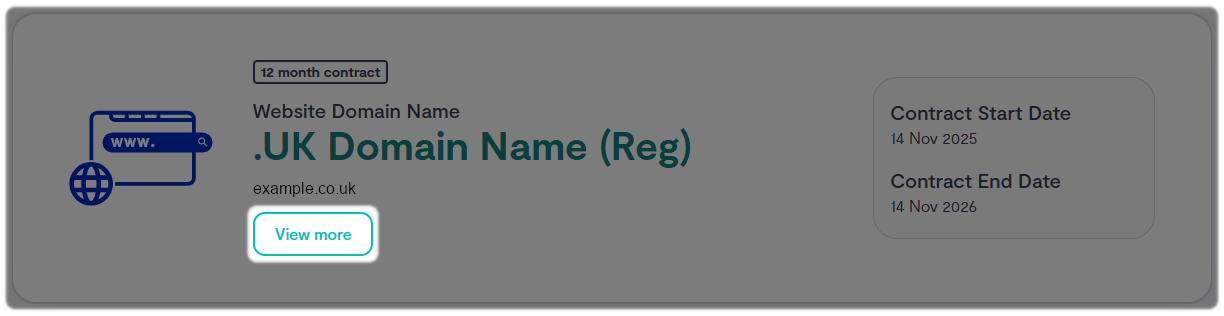
- Find your domain from the list, then select View More
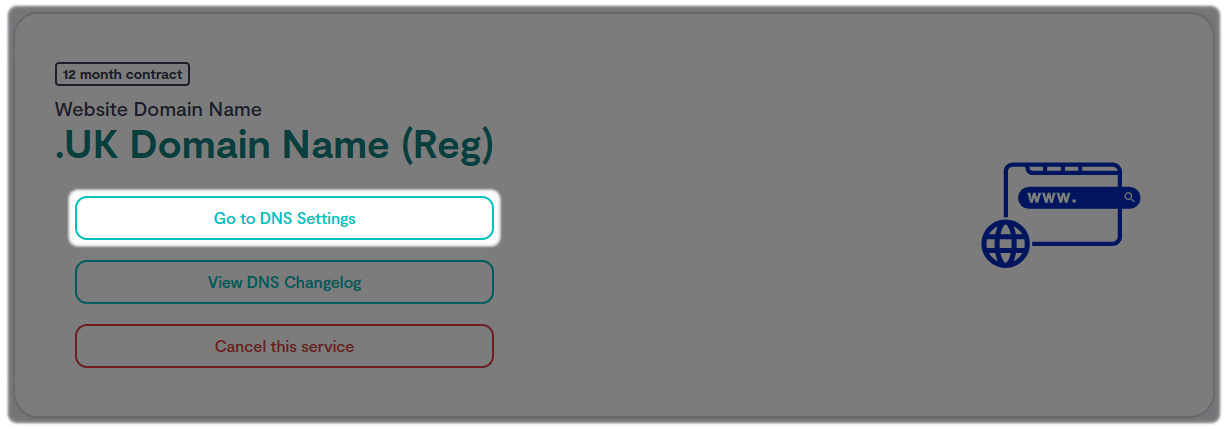
- Select the option for "Go to DNS settings
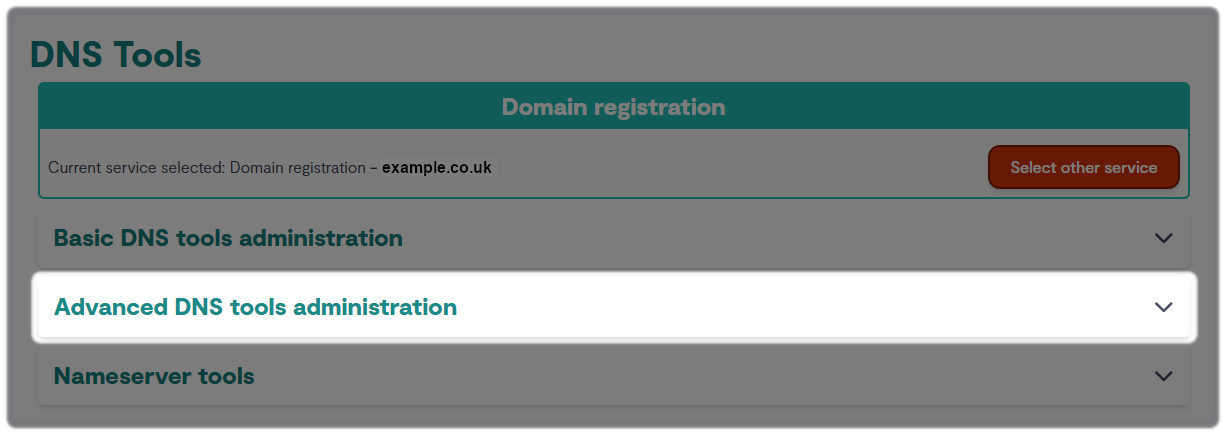
- Now select the option for "Advanced DNS tools administration"
5. Adding the DMARC Record
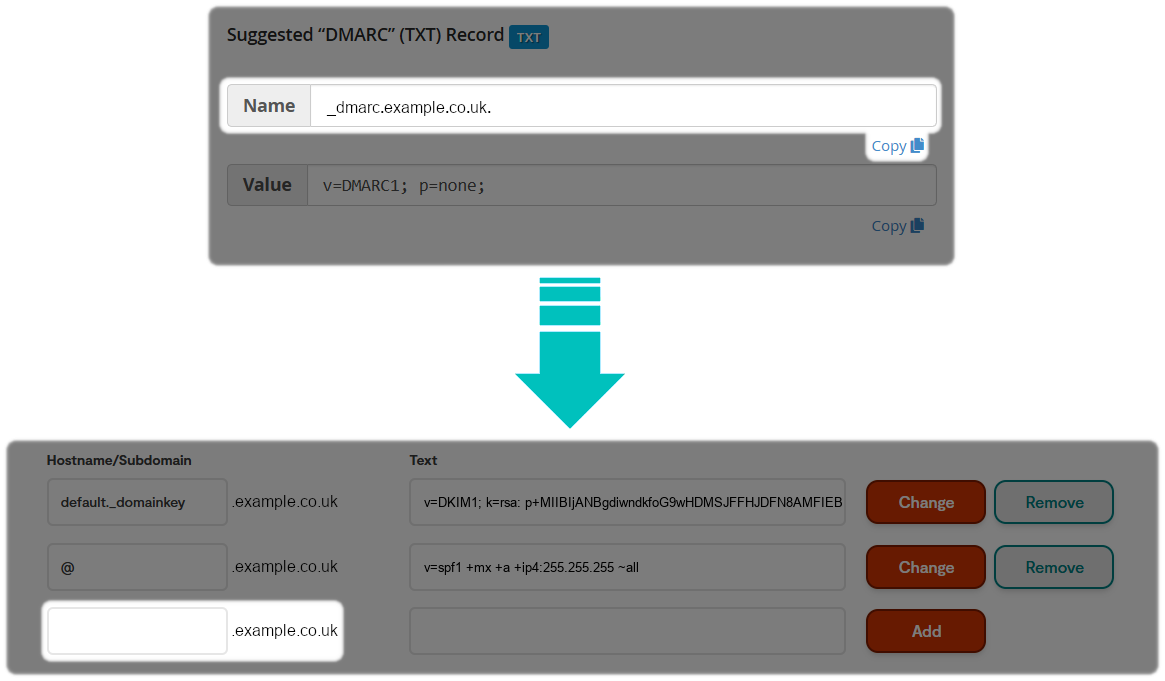
We now need to copy the information from the previous cPanel page, into the TXT record page within the Zen Customer Portal with your current DKIM and SPF records using the blank space provided.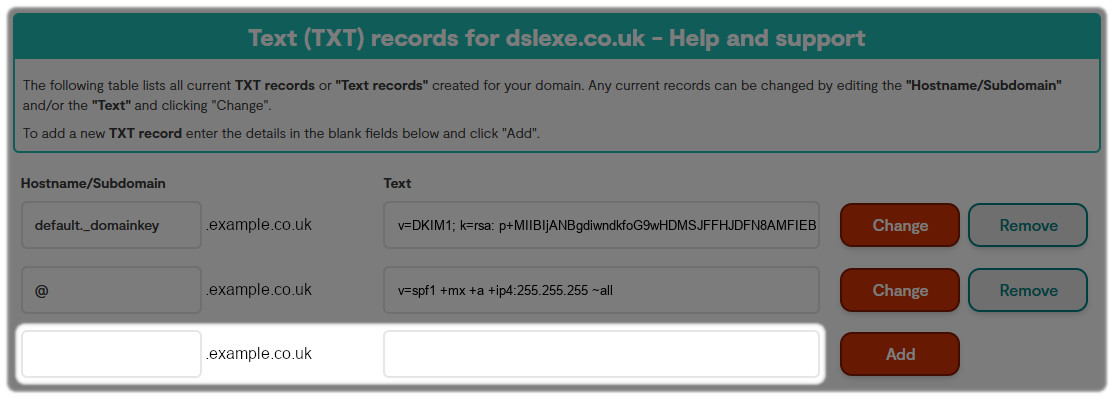
- Copy the "Name" from the Suggested DMARC record on cPanel, into the "Hostname/Subdomain " field in the Zen Customer Portal.
- Now copy the "Value" from the Suggested DMARC record on cPanel, into the "Text" field on the Zen Customer Portal
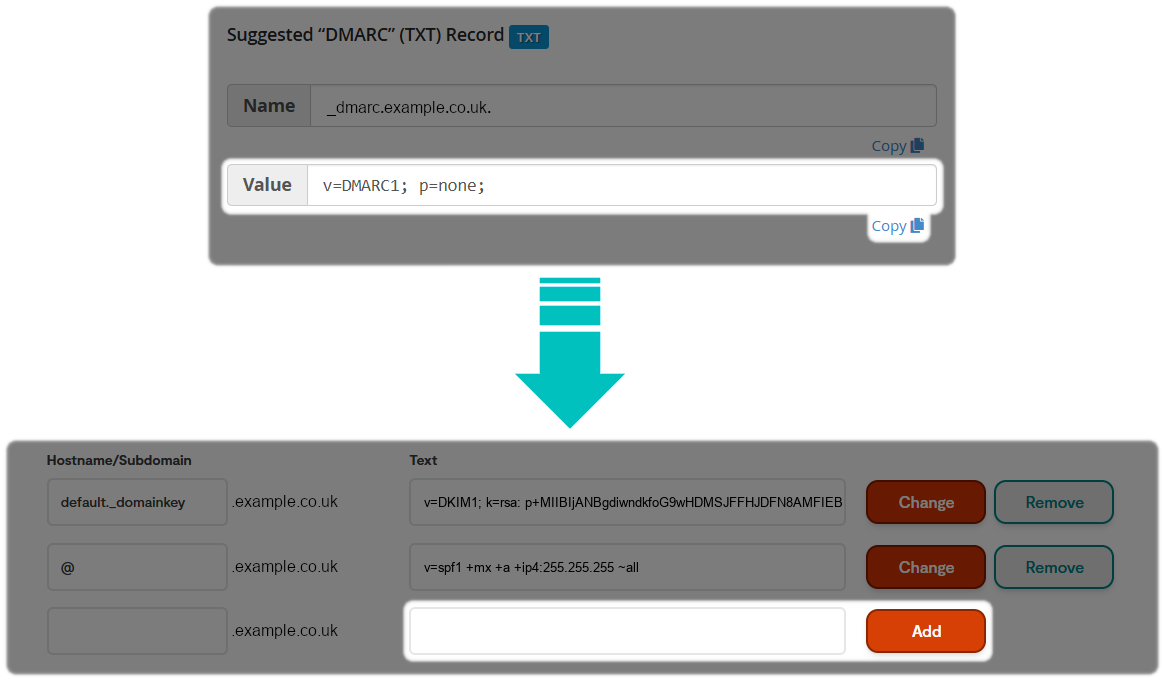
- Finally click "Add" on the Zen Customer Portal to add the record.
DMARC Policy Options
p– Policy for the primary domainsp– Policy for subdomainspct– Percentage of messages the policy applies torua– Address for aggregate DMARC reportsruf– Address for forensic (failure) reportsadkim– DKIM alignment modeaspf– SPF alignment modenone– Monitor email traffic and reporting only.quarantine– Request that receiving mail servers treat failing messages as suspicious (for example, by placing them in a spam or junk folder).reject– Request that receiving mail servers reject messages that fail DMARC checks.- Confirm that all legitimate email sources are correctly configured with SPF and DKIM.
- Publish a DMARC policy using
p=none. - Review DMARC reports and resolve any authentication issues.
- Move to
p=quarantineonce legitimate email is consistently passing authentication checks. - Progress to
p=rejectwhen you are confident that all authorised email sources are correctly aligned.
Note: This section is intended for email administrators and advanced cPanel users. It is provided as general guidance only.
By default, cPanel publishes the following DMARC record:
v=DMARC1; p=none;
This is a monitoring-only policy that allows email providers to collect DMARC reporting data without quarantining or rejecting messages that fail authentication checks.
DMARC supports a range of tags that can be used to customise how email authentication is monitored and enforced. Commonly used tags include:
The p and sp tags support three policy options:
The pct tag can be used to apply a policy to only a percentage of failing messages, allowing a gradual rollout before full enforcement.
A recommended deployment approach is to:
This phased approach helps minimise the risk of legitimate email being affected while strengthening protection against email spoofing and phishing.
DMARC Management Responsibility
Our support team can assist with cPanel administration and DNS-related tasks. However, the configuration and management of DMARC policies remain the responsibility of the domain owner.
Before implementing or changing a DMARC policy, you should ensure that you understand how your domain sends email and how a policy change may affect email delivery. If you are unsure which policy is appropriate for your environment, we recommend consulting your internal IT team or email administrator.
While we can provide general guidance, we are unable to design, select, or manage a DMARC policy on your behalf.
Still Need a Hand?
If encountering problems entering any records, feel free to contact our Web Hosting team.